


Introduction: Taking Control of Your Finances in Retirement
In retirement, managing your money on a fixed income requires careful planning and a sharp eye. You have worked your entire life to build a nest egg, and protecting it is priority number one. Today, much of our financial life—from banking and investing to managing Social Security benefits—happens online. While this technology offers incredible convenience, it also opens a new door for criminals who want to access your hard-earned savings.
Identity theft is not just a minor inconvenience; it can be a devastating financial and emotional event. For seniors, who are often targeted by scammers, the consequences can be particularly severe. Recovering lost funds can be difficult and stressful, disrupting the financial security you depend on. But here is the good news: you have the power to protect yourself. You do not need to be a technology expert to secure your digital life. With a few straightforward habits and an understanding of the risks, you can confidently navigate the online world and keep your financial accounts safe.
This guide is designed to empower you. We will walk you through the essential concepts of digital security, provide clear, actionable steps to safeguard your accounts, and highlight the red flags of common scams. Think of this as your personal cybersecurity manual, written to give you peace of mind and control over your financial future.

Understanding the Financial Basics of Online Account Security
Before we dive into the specific actions you can take, let’s demystify some of the key terms you might hear. Understanding the language of online security is the first step toward building a strong defense. The core idea is simple: criminals want your personal information to access your money. Here is what you need to know.
Identity Theft: This is the fundamental crime we are trying to prevent. It occurs when someone steals your personal information—such as your name, Social Security number, or credit card number—and uses it without your permission. In a financial context, they might open new credit accounts in your name, drain your bank account, or even file a fraudulent tax return to steal your refund.
Phishing: This is one of the most common tactics used by identity thieves. A phishing attack is a fraudulent message, usually an email or text, designed to trick you into revealing sensitive information. The message will look like it is from a legitimate company, such as your bank, a delivery service, or even the IRS. It might say there is a problem with your account and ask you to click a link to fix it. That link leads to a fake website where, if you enter your username and password, the criminals capture it.
Malware: Short for “malicious software,” malware is software designed to harm or gain unauthorized access to your computer. This includes viruses, spyware, and ransomware. You might accidentally download malware by clicking a bad link in an email or a pop-up ad. Once on your computer, it can secretly record your keystrokes (including passwords) or lock up your files until you pay a ransom.
Two-Factor Authentication (2FA): This is one of your most powerful defenses, and it is much simpler than it sounds. Think of it as a second lock on your digital door. In addition to your password (the first factor), you need a second piece of information to log in (the second factor). This is usually a temporary code sent to your phone via text message or generated by an app. Even if a criminal steals your password, they cannot access your account without also having your phone. This single step dramatically increases your senior safety online.
Understanding these concepts is crucial. They are the tools and tricks of the trade for digital criminals. By recognizing them, you can start building a strong wall around your financial life.

Actionable Strategies and Money-Saving Tips
Securing your online accounts is about creating layers of protection. No single action is foolproof, but when you combine several strong habits, you make yourself a much harder target for thieves. Here are the most effective cybersecurity tips to protect your retirement funds.

1. Create Unbreakable Passwords
Your password is the first line of defense for any account. A weak, easy-to-guess password is like leaving your front door unlocked. A strong password is long, complex, and unique.
- Length is Strength: Aim for at least 12 characters. The longer, the better. A password like “Apple123” can be cracked by a computer in seconds. A password like “MyGreenAppleTree!1975” could take centuries.
- Mix It Up: Use a combination of uppercase letters, lowercase letters, numbers, and symbols (like !, @, #, $).
- Make It Unique: Never reuse passwords across different websites. If a thief gets your password for one site, they will try it on your email, bank, and retirement accounts. If you use the same one everywhere, they will get into everything.
- Consider a Passphrase: Instead of a random string of characters, think of a memorable but long phrase. For example, “I love walking my dog Fluffy in the park!” can be turned into a strong password like “IlwmdFitp!_”. It is easy for you to remember but very difficult for a computer to guess.
Managing dozens of unique, complex passwords can feel overwhelming. This is where a password manager can be a lifesaver. A password manager is a secure digital vault that creates, stores, and fills in your passwords for you. You only need to remember one master password to unlock the vault. It is a highly recommended tool for digital security.
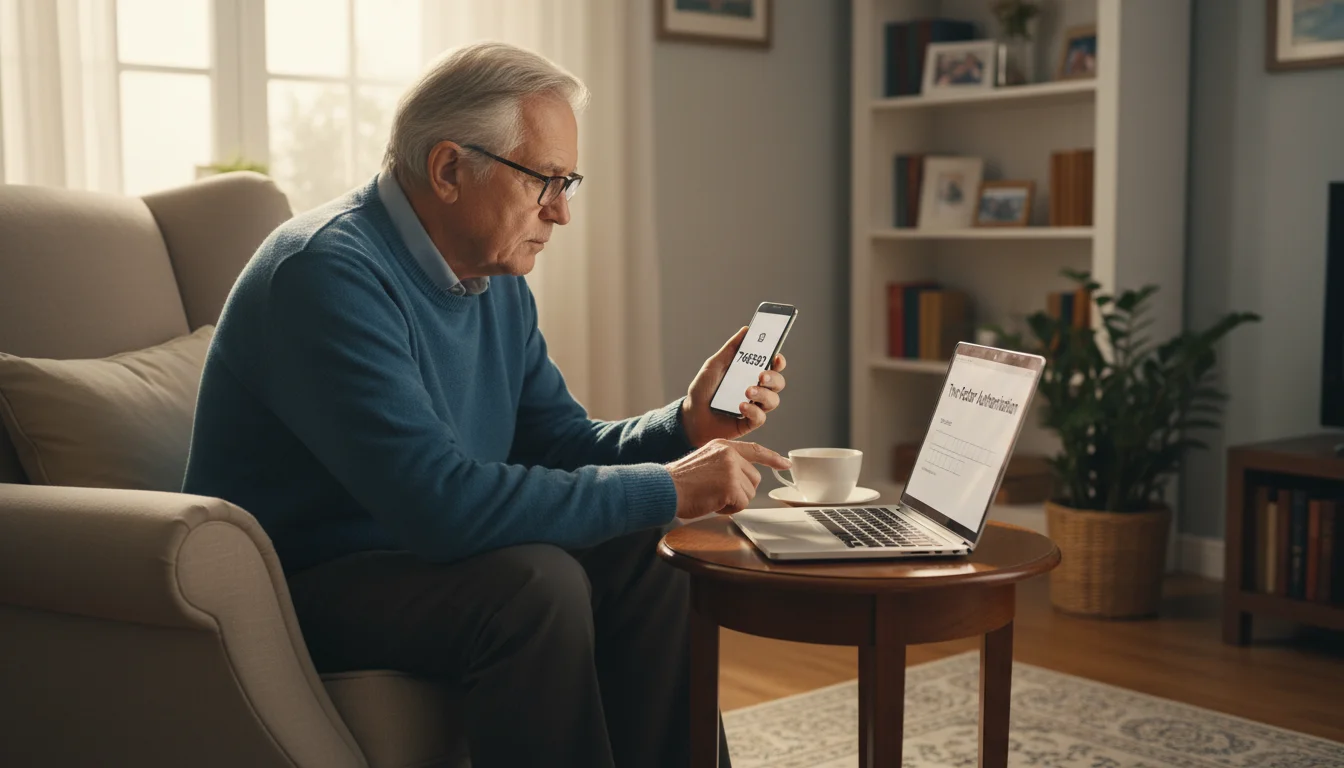
2. Enable Two-Factor Authentication (2FA) Everywhere
We mentioned this earlier, but it is so important it deserves its own section. Two-factor authentication is your security superpower. Most major financial institutions, email providers, and social media sites offer it for free. You should enable it on every single account that offers it, especially:
- Your primary email account
- All banking and investment accounts
- Your Social Security account (SSA.gov)
- Any online shopping sites where you have saved credit card information
To turn on 2FA, log in to your account and look for “Security” or “Login Settings.” The website will guide you through the simple setup process, which usually involves linking your account to your phone number.

3. Practice Safe Browsing and Email Habits
Criminals use the internet to lay traps for you. Learning to spot them is a critical skill for senior safety.
- Look for the Lock: Before entering any personal information on a website, look at the address bar. It should start with “https” and have a small padlock icon next to it. This means the connection is secure and encrypted. If you do not see it, do not enter any sensitive data.
- Think Before You Click: Be suspicious of unsolicited emails or text messages, even if they seem to be from a company you know. If an email from your bank claims your account is locked, do not click the link in the email. Instead, open a new browser window and type the bank’s official website address yourself, or call the number on the back of your debit card.
- Beware of Public Wi-Fi: Free Wi-Fi at coffee shops, airports, and hotels is convenient, but it is not secure. Criminals can sit on the same network and spy on what you are doing. Avoid logging into your bank or making purchases on public Wi-Fi. If you must, use a Virtual Private Network (VPN), which encrypts your connection.

4. Keep Your Devices and Software Updated
Your computer, smartphone, and tablet receive regular software updates for a reason. These updates often contain critical security patches that fix vulnerabilities discovered by the software companies. Hackers actively search for devices that are not updated because they are easy to break into.
- Turn on Automatic Updates: The easiest way to stay safe is to set your devices and applications (like your web browser) to update automatically.
- Use Security Software: Install a reputable antivirus and anti-malware program on your computer and keep it running. This software acts as a security guard, actively scanning for and blocking threats before they can do harm.
Taking these steps creates a robust defense system. It makes your accounts harder to crack, helps you spot and avoid common traps, and ensures your devices have the latest protections. For more cybersecurity tips, you can consult resources from the FTC, which provides extensive consumer guidance.

Financial Red Flags and Scams to Watch Out For
Scammers often use fear and urgency to rush you into making a mistake. They create a sense of crisis to prevent you from thinking clearly. By learning to recognize their tactics, you can stay calm and avoid falling into their traps. Here are three common scams targeting seniors.

1. The Grandparent Scam
In this cruel scam, a criminal calls you pretending to be your grandchild. They will sound frantic and say they are in trouble—they have been in a car accident, arrested, or are stuck in a foreign country and need money wired to them immediately. They will beg you not to tell their parents. The goal is to use your love for your family to trick you out of your money.
Red Flags:
- A sense of extreme urgency. They need the money right now.
- A request for secrecy. “Please don’t tell Mom and Dad, they would be so angry.”
- A specific payment method, often a wire transfer, gift card, or cryptocurrency. These methods are difficult to trace and nearly impossible to reverse.
What to Do: Resist the urge to act immediately. Hang up and call your grandchild or another family member directly using a phone number you know is real. Verify the story. Never send money based on a frantic, unexpected phone call.
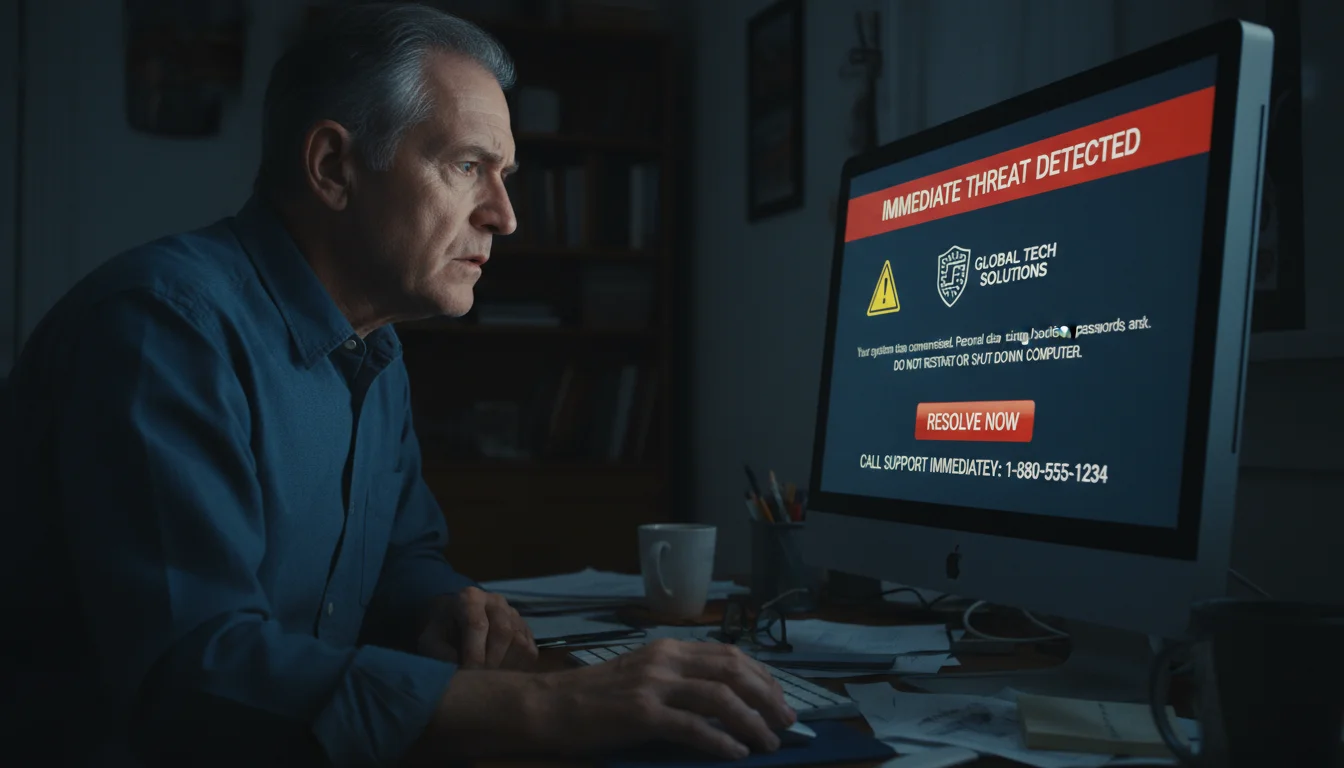
2. The Tech Support Scam
This scam starts with a scary pop-up message on your computer screen. It might look like an official alert from Microsoft or Apple, complete with logos and warning sirens. The message will claim your computer is infected with a dangerous virus and you must call a toll-free number immediately for help. If you call, a fake “technician” will try to convince you to give them remote access to your computer and pay hundreds of dollars for useless software or a bogus repair service. Once they are in your computer, they can steal your financial information.
Red Flags:
- An unsolicited pop-up message that you cannot easily close.
- A demand to call a phone number to fix a computer problem. Legitimate tech companies will never contact you this way.
- Pressure to pay for services with a gift card or wire transfer.
What to Do: Do not call the number. Do not click anything in the pop-up. If you cannot close the window, shut down your computer by holding the power button. When you restart it, the pop-up should be gone. Run a scan with your antivirus software to be safe.

3. The “Account Problem” Phishing Scam
You receive an official-looking email or text message from a company you trust, like your bank, Amazon, or even Medicare.gov. The message states there has been a “suspicious login attempt” or that your “account has been suspended.” It urges you to click a link to verify your identity or update your password. The link takes you to a fraudulent website that looks identical to the real one, designed to steal your login credentials.
Red Flags:
- Generic greetings like “Dear Valued Customer” instead of your name.
- Spelling and grammar mistakes.
- A link that does not match the company’s real web address. You can often see the true destination by hovering your mouse over the link without clicking.
- A sense of urgency, threatening that your account will be closed if you do not act now.
What to Do: Do not click the link. If you are concerned about your account, contact the company directly through their official website or the phone number on your statements. For concerns about potential financial fraud, you can find valuable resources at the Consumer Financial Protection Bureau (CFPB).
Disclaimer: This article is for informational purposes and is not a substitute for professional financial or tax advice. Consult with a certified financial planner or tax professional for guidance on your specific situation.

A Financial Checklist for Safeguarding Your Online Accounts
Feeling overwhelmed? Let’s simplify. Here is a step-by-step checklist to guide you through the process of securing your digital financial life. Tackle one item at a time. Each step you complete makes you significantly safer.
First, perform a password audit. Make a list of your most important online accounts: bank, credit cards, retirement funds, email, and your Social Security portal. Go to each site and create a new, strong, unique password for each one. Write them down and store them in a secure physical location (like a locked safe) or, even better, start using a password manager.
Second, enable two-factor authentication (2FA). While you are logged into those important accounts, find the security settings. Follow the instructions to turn on 2FA. This is the single most effective action you can take to protect your accounts from being taken over.
Third, review your privacy settings on social media. Go to your Facebook or other social media accounts and check who can see your information. Scammers often piece together personal details from public profiles. Limit your posts and personal information (like your birthday and hometown) to be visible only to “Friends.”
Fourth, check your devices for updates. On your computer, smartphone, and tablet, go into the settings and check for software updates. If any are available, install them. While you are there, make sure you have reputable antivirus software installed and that it is up to date.
Finally, practice ongoing vigilance. Check your bank and credit card statements regularly for any unauthorized charges. Consider a credit freeze, which restricts access to your credit report, making it much harder for thieves to open new accounts in your name. For information on federal taxes and identity theft, the IRS provides specific guidance for taxpayers.

Frequently Asked Questions
1. What is the first thing I should do if I think my account has been compromised?
If you suspect an account has been hacked, act immediately. First, try to log in and change the password. If you cannot get in, the thief may have already changed it. Contact the company’s fraud department right away by phone. For a financial account, they can freeze the account to prevent further losses. Next, report the identity theft to the FTC at IdentityTheft.gov. They will provide a personalized recovery plan.
2. Are password managers really safe to use?
Yes, reputable password managers are very safe. They use strong encryption to protect your stored information. The risk of a major password manager company being hacked is far lower than the risk of you reusing a weak password that gets stolen from a less secure website. Using a password manager is one of the best digital security practices you can adopt.
3. Is it safe to use public Wi-Fi at a library or coffee shop?
It is generally safe for casual browsing, like reading the news. However, you should never log into your bank, make a purchase, or enter any other sensitive information while on a public Wi-Fi network. These networks are often unsecured, meaning a nearby criminal can potentially see your activity. If you must conduct private business, it is much safer to use your smartphone’s cellular data connection.
4. My bank sent me a text message with a link. How do I know if it is real?
You should always assume it is a scam. This is a common phishing tactic called “smishing” (SMS phishing). Banks and other financial institutions will rarely, if ever, send you a link in a text message and ask you to log in or provide information. If you receive such a message, delete it. If you are concerned, call your bank using the official number on the back of your card to ask if they tried to contact you.
5. I am not very tech-savvy. Isn’t it easier to just write my passwords down in a notebook?
Writing passwords down can be a risky strategy. If the notebook is lost or stolen, a thief gets the keys to your entire digital life. If you choose this method, never label the notebook “Passwords” and do not store it in an obvious place. A password manager is a more secure modern solution, but if you are uncomfortable with that, a securely stored physical list is better than using the same weak password everywhere.
For expert guidance on senior health and finance, visit National Institute on Aging (NIA), Centers for Disease Control and Prevention (CDC), Medicare.gov, National Institute of Mental Health (NIMH) and National Institutes of Health (NIH).
|
Fact-Checked Content
Our editorial team reviews all content for accuracy and updates it regularly. Learn about our editorial process →
|









Leave a Reply